

Broadcast scenes for the moments around the match
Scenes are standalone broadcast graphics for everything that happens outside live rounds — the team face-off, your talent line-up, sponsors, and the map recap between games. Each one is styled to match your HUD and ready to use as a native window or an OBS browser source, no graphics editor required.
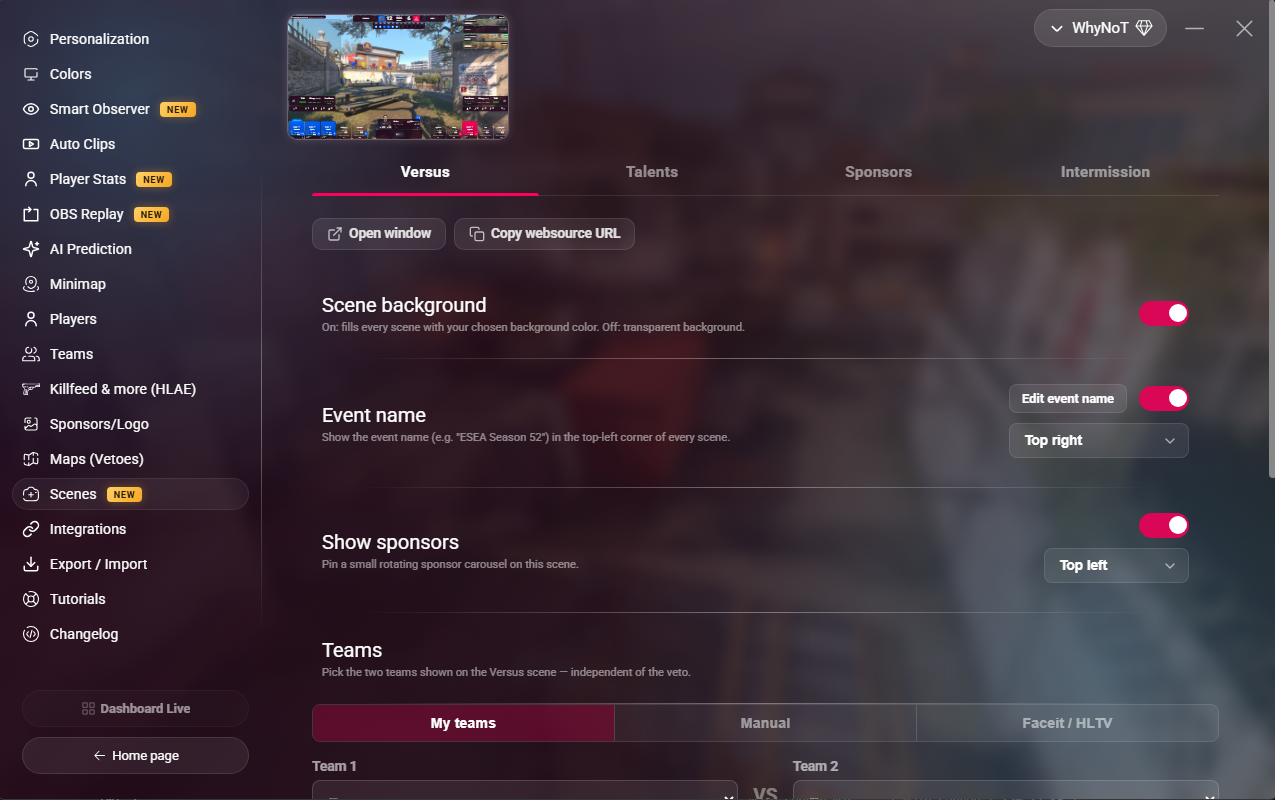
Versus: the face-off screen
Open with both teams side by side, a live countdown to kickoff, and the match format. Pull teams straight from your saved roster, type them in manually, or import a match directly from a FACEIT link — logos and names included.
- Match countdown and BO1/BO3/BO5 format
- Roster, manual, or FACEIT import
- Falls back to a clean placeholder until a match is set
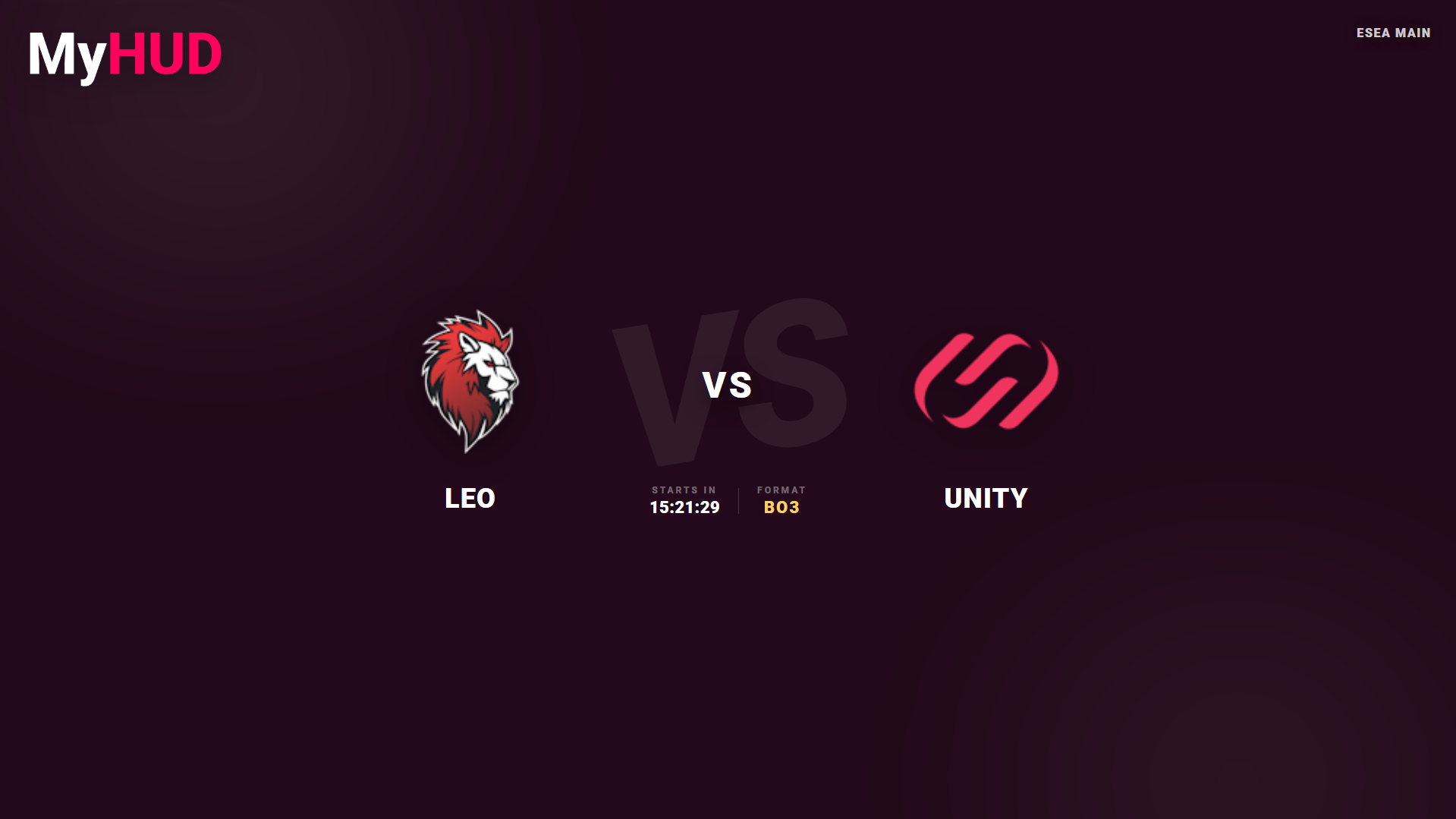
Talents: introduce your casters and observers
Give your observers, casters and talents a proper introduction with a dedicated line-up screen — name, role and photo for each, laid out as broadcast-ready cards.
Sponsors: a full-screen showcase
A dedicated, full-screen rotating carousel for your sponsors — each logo is measured and sized to its own real aspect ratio, so a square logo and a wide banner both get their fair share of the screen instead of being squeezed into the same box.
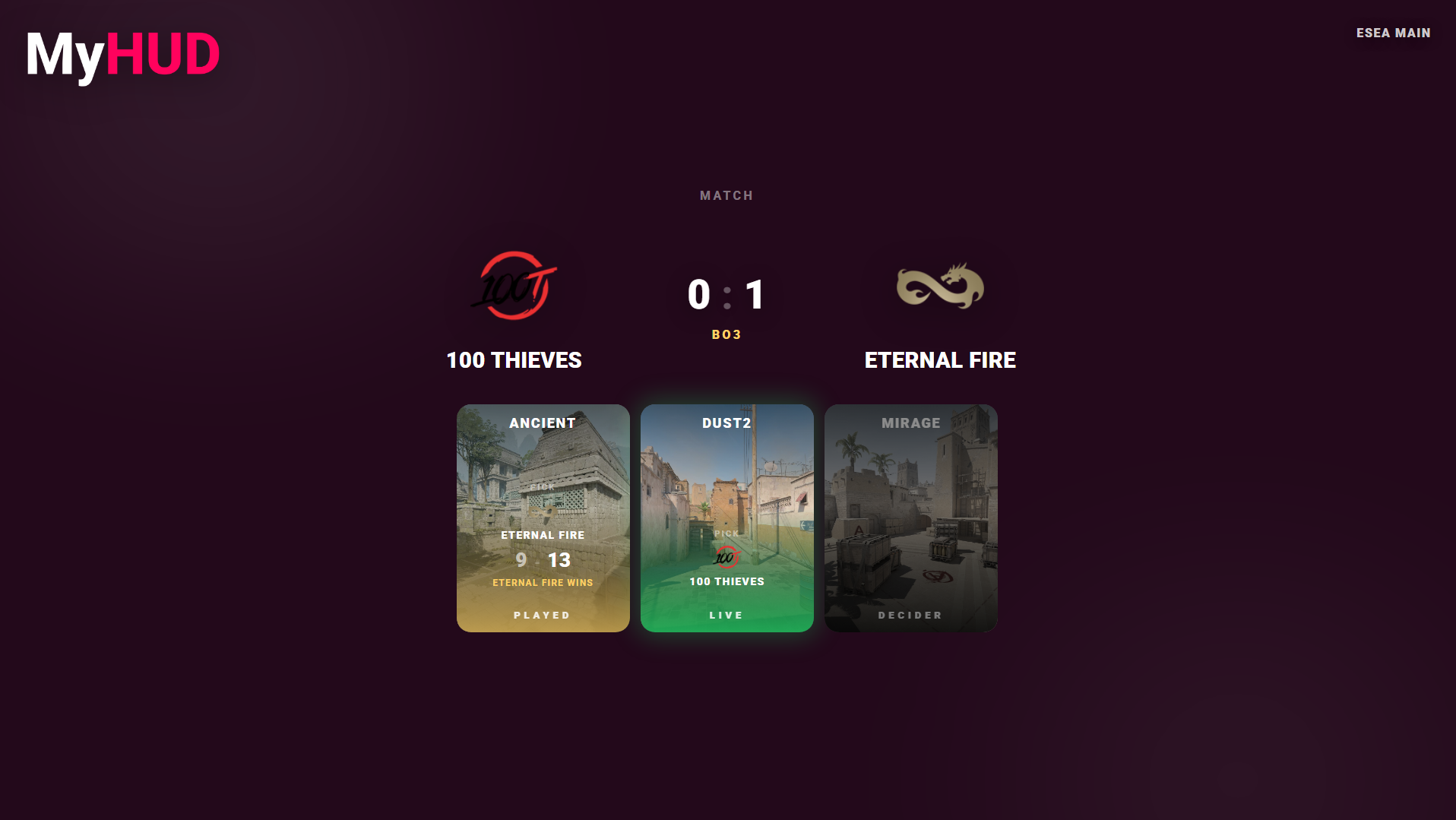
Intermission: the map recap
Between maps, show the series score, the map that was just played, and what's coming up next — with logos and results at a glance. Until a veto is set, it falls back to the Versus screen instead of showing a blank graphic.
Use them anywhere
Every scene works two ways: open it as its own native window for a quick cutaway, or paste its dedicated URL into an OBS browser source and switch to it like any other scene in your production. Preview each one live in the config panel before you commit it to air.
- One URL per scene for OBS browser sources
- Or a native window, closed with a click or Escape
- Live preview in the config panel
- Matches your HUD colors, with an optional transparent background
Frequently asked questions
Questions & Answers
Everything you need to know about MyHUD
No. Each scene can be opened as its own native window from MyHUD — OBS browser sources are supported too, but they're optional.
Yes. Paste a FACEIT match link and MyHUD pulls in both team names and logos automatically, alongside the match date and format when available.
Yes. Scenes reuse your chosen HUD background color by default, with an option to make the background fully transparent instead.
The Versus and Intermission scenes show a clear "no match configured" placeholder instead of a blank screen, so you always know what state you're in before going live.
Ready to upgrade your CS2 broadcast?
Start with MyHUD today — free trial, no game files to edit.
Download MyHUD